
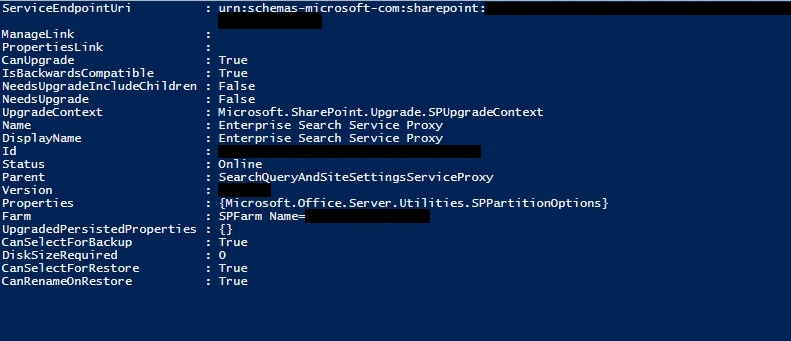
 In an effort to setup Enterprise Search in SharePoint 2013 using PowerShell to make sure every nook and cranny was covered, I came across a number of scripts, but none seemed to do as good of a job as this one. I’m not sure what the original source is or who put it together, but it worked flawlessly. This is probably by far the best PowerShell script I have found for setting up Enterprise Search that does a good job of setting up every component. Enjoy!
Before running, create a folder on a hard drive of your choosing where indexes will be stored. In this case, I used “C:\SPSearchIndexes” for the Index location. This has to be created beforehand, otherwise it will fail!
## Create Enterprise Search Service (If Upgrading Use Existing Database Names) ##

Add-PsSnapin Microsoft.SharePoint.PowerShell #-ErrorAction SilentlyContinue

#Variables/Parameters

$searchMachines = "serverName"
$searchQueryMachines = "serverName"
$searchCrawlerMachines = "serverName"
$searchAdminComponentMachine = "serverName"
$searchSAName = "Enterprise Search Service"
$saAppPoolName = "Enterprise Search App Pool"
$databaseServerName = "dBserverName"
$searchDatabaseName = "SPSearchDB"
$indexLocation = "C:\SPSearchIndexes"
$SearchAccount = "searchServiceAccount"

#Create search service

Write-Host "Creating Search Service and Proxy…"
Write-Host "Starting Services…"

foreach ($machine in $searchMachines)
{
Write-Host "Starting Search Services on $machine"

Start-SPEnterpriseSearchQueryAndSiteSettingsServiceInstance $machine -ErrorAction SilentlyContinue

Start-SPEnterpriseSearchServiceInstance $machine -ErrorAction SilentlyContinue
}

Write-Host "Creating Application Pool"

$searchAppPool = New-SPServiceApplicationPool -name $saAppPoolName -account $SearchAccount

Write-Host "Creating Search Application…"

$searchApp = Get-SPEnterpriseSearchServiceApplication -Identity $searchSAName -ErrorAction SilentlyContinue

if (!$searchApp)
{
$searchApp = New-SPEnterpriseSearchServiceApplication -Name $SearchSAName -ApplicationPool $saAppPoolName -DatabaseServer $databaseServerName -DatabaseName $searchDatabaseName
}

$searchInstance = Get-SPEnterpriseSearchServiceInstance -Local

Write-Host "Defining the Search Topology…"

$initialSearchTopology = $searchApp | Get-SPEnterpriseSearchTopology -Active

$newSearchTopology = $searchApp | New-SPEnterpriseSearchTopology

Write-Host "Creating Admin Component…"

New-SPEnterpriseSearchAdminComponent -SearchTopology $newSearchTopology -SearchServiceInstance $searchInstance

Write-Host "Creating Analytics Component…"

New-SPEnterpriseSearchAnalyticsProcessingComponent -SearchTopology $newSearchTopology -SearchServiceInstance $searchInstance

Write-Host "Creating Content Processing Component…"

New-SPEnterpriseSearchContentProcessingComponent -SearchTopology $newSearchTopology -SearchServiceInstance $searchInstance

Write-Host "Creating Query Processing Component…"

New-SPEnterpriseSearchQueryProcessingComponent -SearchTopology $newSearchTopology -SearchServiceInstance $searchInstance

Write-Host "Creating Crawl Component…"

New-SPEnterpriseSearchCrawlComponent -SearchTopology $newSearchTopology -SearchServiceInstance $searchInstance

Write-Host "Creating Index Component…"

New-SPEnterpriseSearchIndexComponent -SearchTopology $newSearchTopology -SearchServiceInstance $searchInstance -RootDirectory $indexLocation

Write-Host "Activating the new topology…"

$newSearchTopology.Activate()

Write-Host "Creating Search Application Proxy…"

$searchProxy = Get-SPEnterpriseSearchServiceApplicationProxy -Identity "$searchSAName Proxy" -ErrorAction SilentlyContinue

if (!$searchProxy)

{

New-SPEnterpriseSearchServiceApplicationProxy -Name "$searchSAName Proxy" -SearchApplication $searchSAName

}
Robert
HOw to add multiple servers in the variable $searchMachines = “serverName”? If I want the Query running on two machines is there a way to add it to multiple?
David Westerfield
That’s a great question, I’m honestly not sure.